Photo uploader
Photo uploader allows users to upload and manage an image used as avatar.
Usage
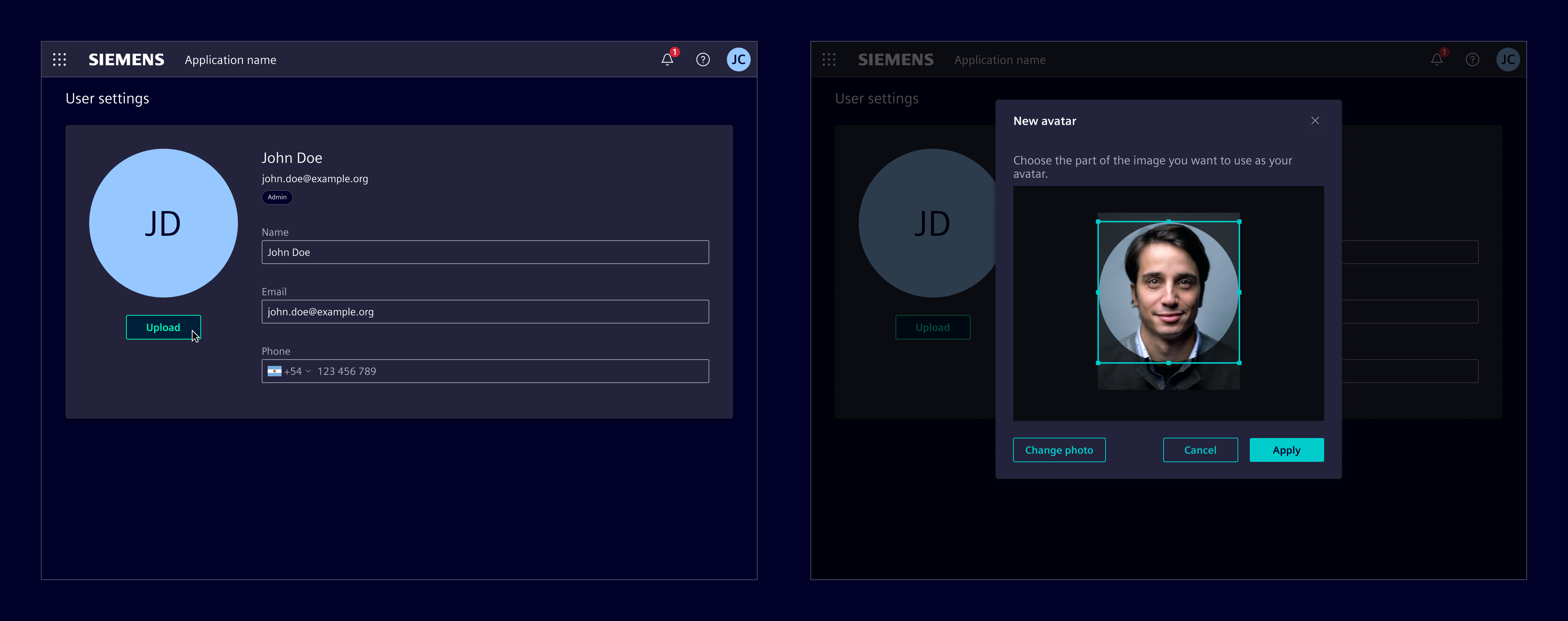
The photo uploader allows users to upload an image via file browser. It optionally provides an edit dialog for cropping the image.
When to use
- In the user profile so the user can choose/change his avatar.
- When a user is created.
Best practices
- The original image is kept (if necessary, a compressed version of it) so the user can undo the cropping.
- Display the compressed version of the image in the preview if compression is required.
- Adjust the size according to layout needs.
- The placeholder can use any of the avatar colors.
Design
Elements
The photo uploader has different states based on the upload status:
- Initial state: When no image is uploaded, a placeholder with the user's initials will be shown.
- Image uploaded: Once a image is uploaded, options to remove or change the image will be displayed.

- Initials, 2. Upload button, 3. Image, 4. Change button, 5. Remove button
Additionally, a dialog can be enabled to allow users to crop the image if necessary.
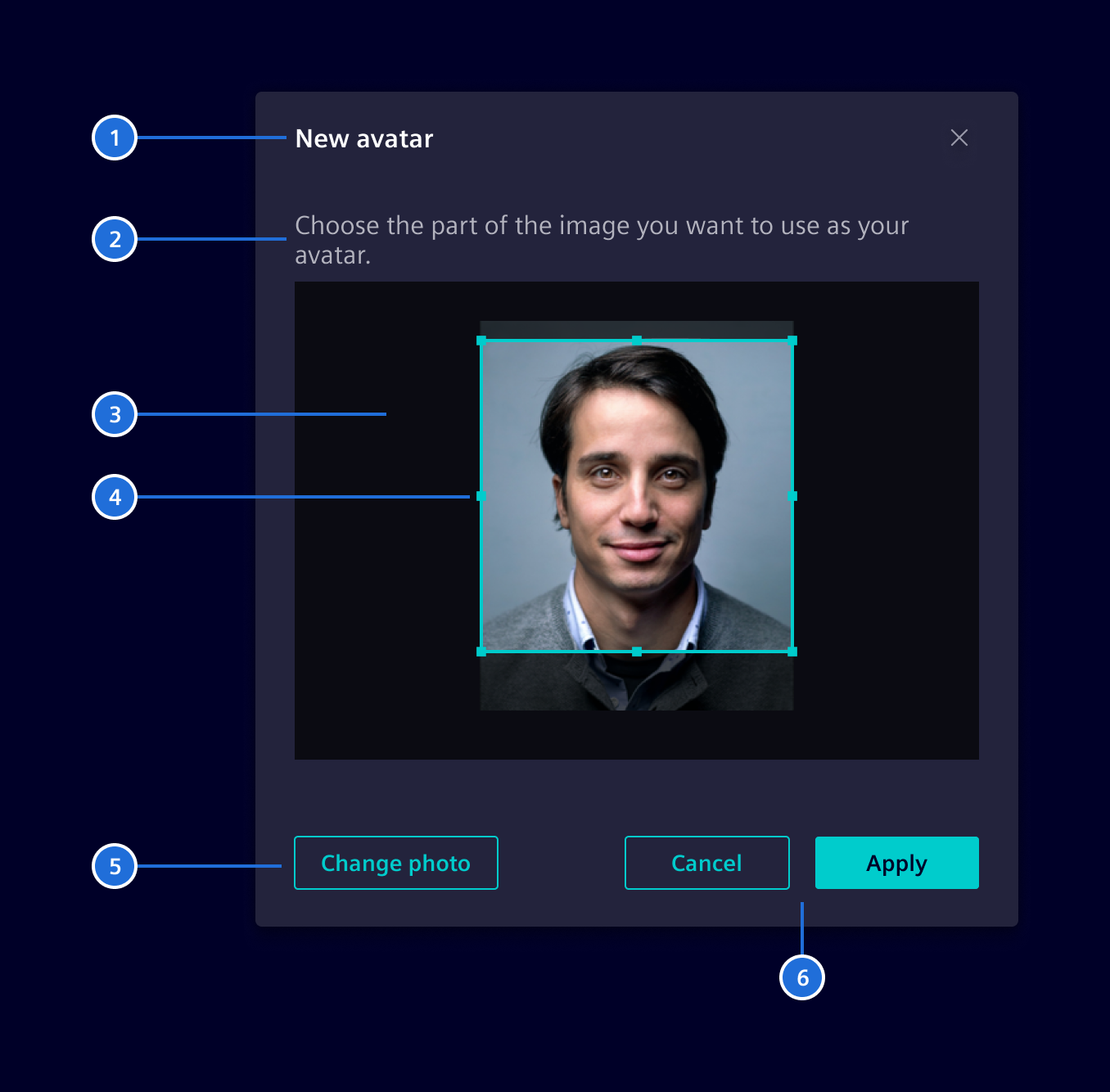
- Title, 2. Description, 3.Image, 4.Crop mask, 5. Change image button, 6.Cancel and Apply button
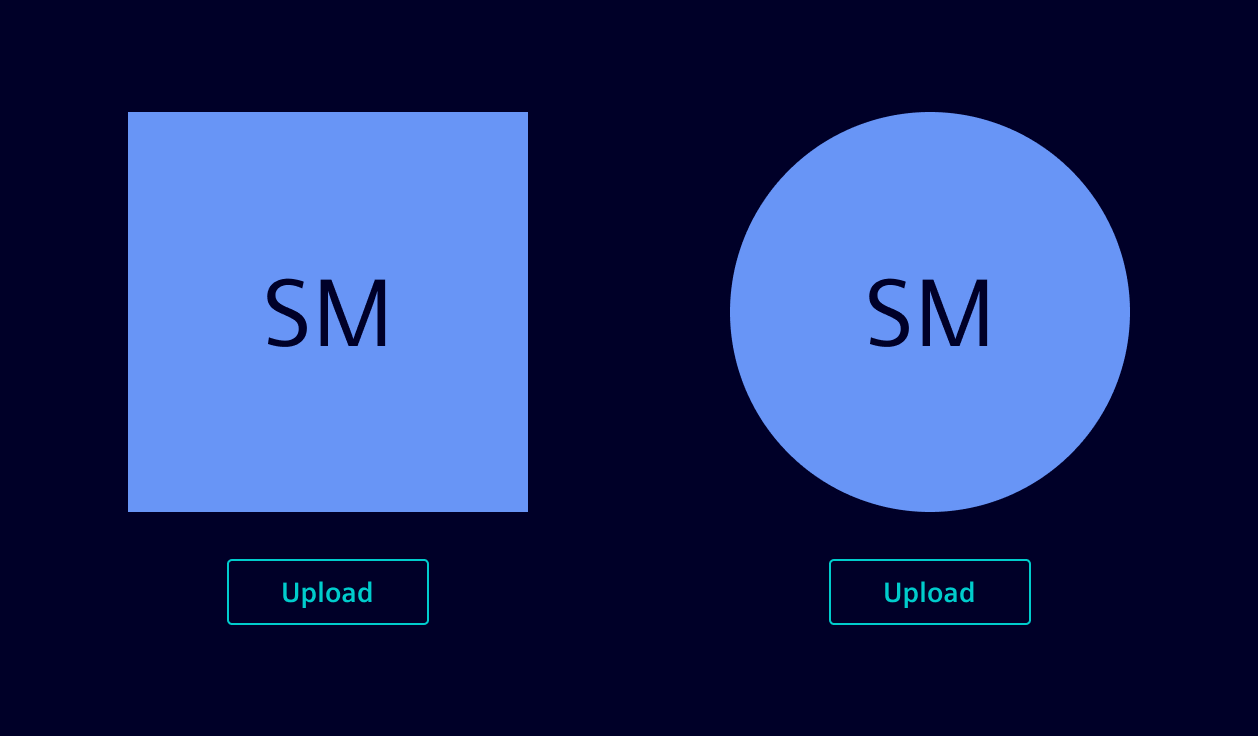
Mask shape
The image mask can be set to a square or rounded shape according to the layout.
Validation
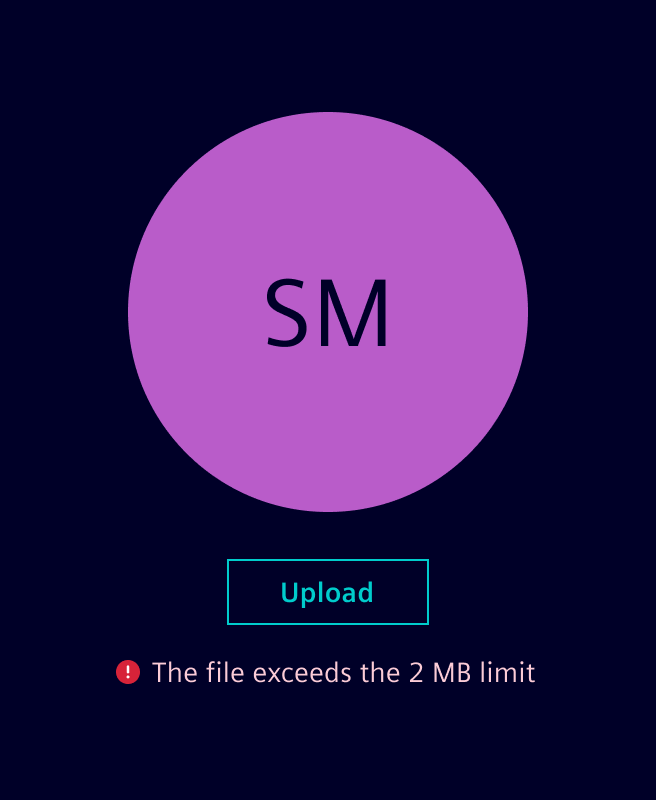
If the user tries to upload a file that exceeds the allowed limit, the component will not upload the new image and will display an error message.
Code
Usage
The component SiPhotoUploadComponent makes use of the open source software ngx-image-cropper. You need to add the npm package to your project, before you can make use of the photo upload component.
Import the SiPhotoUploadComponent in your standalone component that shall provide a photo upload.
Required Packages
- ngx-image-cropper The currently supported dependency versions can be found in the package.json of the demo app.
import { Component } from '@angular/core';
import { SiPhotoUploadComponent } from '@siemens/element-ng/photo-upload';

@Component({
  selector: 'app-sample',
  template: `<si-photo-upload />`,
  imports: [SiPhotoUploadComponent]
})
export class SampleComponent {}
Adjust size
Consuming applications can customize the component size via the following CSS variables:
--si-photo-upload-photo-width(default:200px)--si-photo-upload-photo-height(default:200px)
The snippet below shows how to use the Angular component styles attribute to adjust the size to 300px x 300px:
import { Component } from '@angular/core';
import { SiPhotoUploadComponent } from '@siemens/element-ng/photo-upload';

@Component({
  selector: 'app-sample',
  template: `<si-photo-upload />`,
  imports: [SiPhotoUploadComponent],
  styles:
    'si-photo-upload { --si-photo-upload-photo-width: 300px; --si-photo-upload-photo-height: 300px; }'
})
export class SampleComponent {}
Image cropping
To implement custom image cropping — whether in an upload dialog, an image editor, or a photo workflow — you can use the image cropper as a standalone component.
Simply wrap the <image-cropper> element from the ngx-image-cropper library with <si-image-cropper-style>.
This ensures the component matches Element’s theming while granting you full control over its configuration and behavior.
import { Component } from '@angular/core';
import { SiImageCropperStyleComponent } from '@siemens/element-ng/photo-upload';
import { ImageCropperComponent, ImageCroppedEvent } from 'ngx-image-cropper';

@Component({
  selector: 'app-sample',
  template: `
    <si-image-cropper-style>
      <image-cropper
        format="jpeg"
        [imageURL]="imageSource"
        [maintainAspectRatio]="true"
        [aspectRatio]="1"
        (imageCropped)="onImageCropped($event)"
      />
    </si-image-cropper-style>
  `,
  imports: [ImageCropperComponent, SiImageCropperStyleComponent]
})
export class SampleComponent {
  imageSource = 'path/to/your/image.jpg'; // URL to your image

  onImageCropped(event: ImageCroppedEvent) {
    // Handle the cropped image
    const croppedImage = event.base64;
    // Use the cropped image as needed
  }
}
Security considerations
The sourcePhotoUrl is marked as a trusted resource URL and is not sanitized by Angular. Only pass URLs from trusted sources.
SiPhotoUploadComponent API Documentation
si-photo-upload A component used to upload, edit, and delete a user's photo. The user can upload a photo either via file browser or a URL to the photo. You can set the source photo with the sourcePhoto Data URL input or the sourcePhotoUrl URL input. If you already have a cropped image you can set it with the croppedPhoto input. Cropping changes are emitted via the croppedPhotoChange output.
Input Properties
| Name | Type | Default | Description |
|---|---|---|---|
| acceptedUploadFormats ¶ | string | '.png, .jpg, .jpeg' | Accepted image formats for the file selection dialog. See https://developer.mozilla.org/en-US/docs/Web/HTML/Element/input/file#attr-accept |
| applyEditText ¶ | TranslatableString | $localize`:@@SI_PHOTO_UPLOAD.APPLY_PHOTO:Apply` | Text for the button applying the edited photo. |
| autoColor ¶ | boolean | false | Automatically calculates the background color. If set, color will be ignored. |
| cancelEditText ¶ | TranslatableString | $localize`:@@SI_PHOTO_UPLOAD.CANCEL:Cancel` | Text for the button cancelling the editing process. |
| changePhotoText ¶ | TranslatableString | $localize`:@@SI_PHOTO_UPLOAD.CHANGE_PHOTO:Change` | Text for the button changing the photo. |
| color ¶ | number | undefined | The desired color index from $si-sys-color-data-categorical-* color tokens. This can be set to any kind of positive integer that is then mapped to a color index. A better way to set a pseudo-random color is to set autoColor to true . |
| croppedPhoto ¶ | string | The photo to be displayed and edited (when not readonly). | |
| cropperAspectRatio ¶ | number | 1 | The width / height ratio (e.g. 1 / 1 for a square, 4 / 3, 16 / 9 ...). |
| cropperContainWithinAspectRatio ¶ | boolean | false | When set to true, padding will be added around the image to make it fit to the aspect ratio. Be aware that this transformation will cause the loaded image to be a png file with an increased base64 string payload. |
| cropperFrameAriaLabel ¶ | TranslatableString | $localize`:@@SI_PHOTO_UPLOAD.CROPPER_FRAME_LABEL:Crop picture` | Cropper frame aria label. |
| cropperImageFormat ¶ | ("png" | "jpeg") | 'jpeg' | Output format of the edited image. |
| cropperMaintainAspectRatio ¶ | boolean | true | Whether to keep the width and height of the cropped image equal according to the aspectRatio. |
| cropperMaxHeight ¶ | number | 0 | The cropper´s height cannot be made bigger than this number of pixels. Default is 0 (disabled). |
| cropperMaxWidth ¶ | number | 0 | The cropper´s width cannot be made bigger than this number of pixels. Default is 0 (disabled). |
| cropperMinHeight ¶ | number | 50 | The cropper´s height cannot be made smaller than this number of pixels (relative to original image´s size). Will be ignored if cropperMaintainAspectRatio is set. (0 = disabled). |
| cropperMinWidth ¶ | number | 50 | The cropper´s width cannot be made smaller than this number of pixels (relative to original image´s size). (0 = disabled). |
| disabledCropping ¶ | boolean | false | Optionally disable image cropping. |
| maxFileSize ¶ | number | 2048 | Maximum allowed file size of the uploaded file in kilobytes. |
| modalDescription ¶ | TranslatableString | Text displayed as description of the editing modal. | |
| modalHeader ¶ | TranslatableString | $localize`:@@SI_PHOTO_UPLOAD.MODAL_TITLE:Profile picture` | Text displayed as header of the editing modal. |
| photoAltText ¶ | TranslatableString | '' | Alternative text for the photo. |
| placeholderAltText ¶ | TranslatableString | '' | Alternative text for the photo´s placeholder. The value will be used to calculate the background color when autoColor is true. |
| readonly ¶ | boolean | false | Indicate that changing or uploads are disabled. |
| removePhotoText ¶ | TranslatableString | $localize`:@@SI_PHOTO_UPLOAD.REMOVE:Remove` | Text for the button removing the photo. |
| roundImage ¶ | boolean | true | Set this to true for a round cropper. Resulting image will still be square, but visually clipped with a border-radius: 50% on the resulting image to show it as round. |
| sourcePhoto ¶ | string | The input photo to be used for cropping. A string in Data URL format with base64 encoding. | |
| sourcePhotoUrl ¶ | string | URL to a photo to be used for cropping. | |
| uploadErrorTooBig ¶ | TranslatableString | $localize`:@@SI_PHOTO_UPLOAD.ERROR_FILE_SIZE_EXCEEDED:Current file size of {{mb}} MB exceeds file size of max. {{maxSizeMb}} MB` | If the uploaded file exceeds the allowed upload size, this error message will be displayed to the user. |
| uploadErrorWrongType ¶ | TranslatableString | $localize`:@@SI_PHOTO_UPLOAD.ERROR_FILE_TYPE:The image file is not valid. Please upload a PNG or JP(E)G.` | If the uploaded file is of an unsupported type, this error message will be displayed to the user. |
| uploadPhotoText ¶ | TranslatableString | $localize`:@@SI_PHOTO_UPLOAD.UPLOAD_PHOTO:Upload picture` | Text for the button uploading a photo. |
Output Properties
| Name | Type | Description |
|---|---|---|
| croppedPhotoChange ¶ | string | The photo to be displayed and edited (when not readonly). |
| sourcePhotoChange ¶ | string | The input photo to be used for cropping. A string in Data URL format with base64 encoding. |
Types Documentation
| Represents a translatable string. This can either be a translation key, e.g. ACTIONS.EDIT that will be automatically translated when displayed on the UI or a pre-translated string, e.g. Edit . Equivalent to a normal string in usage and functionality. |
|---|
Except where otherwise noted, content on this site is licensed under MIT License.